Head Mistress Guide
You are a Head Mistress (section head). The School Admin or Principal assigns you to certain classes on Head Mistress Assignments. You supervise those classes: their teachers' lesson plans, the exam timetable, assessments and teacher–parent chats.
What you see
- Dashboard, with a quick link to the student list.
- Academics › Lesson plans, Exam Timetable and Chat Moderation.
- The Teacher Dashboard (assignments, tests and exams), and My Students.
If you also teach, ask the School Admin to give you the Teacher role too. Then also read the Teacher Guide.
Your tasks
Review teachers' lesson plans
Purpose: Check lesson plans that teachers submit, approve good ones, and send back plans that need changes.
Who can use it: Head Mistress (her assigned classes), Principal, School Admin.
Where: Academics › Lesson plans
Steps
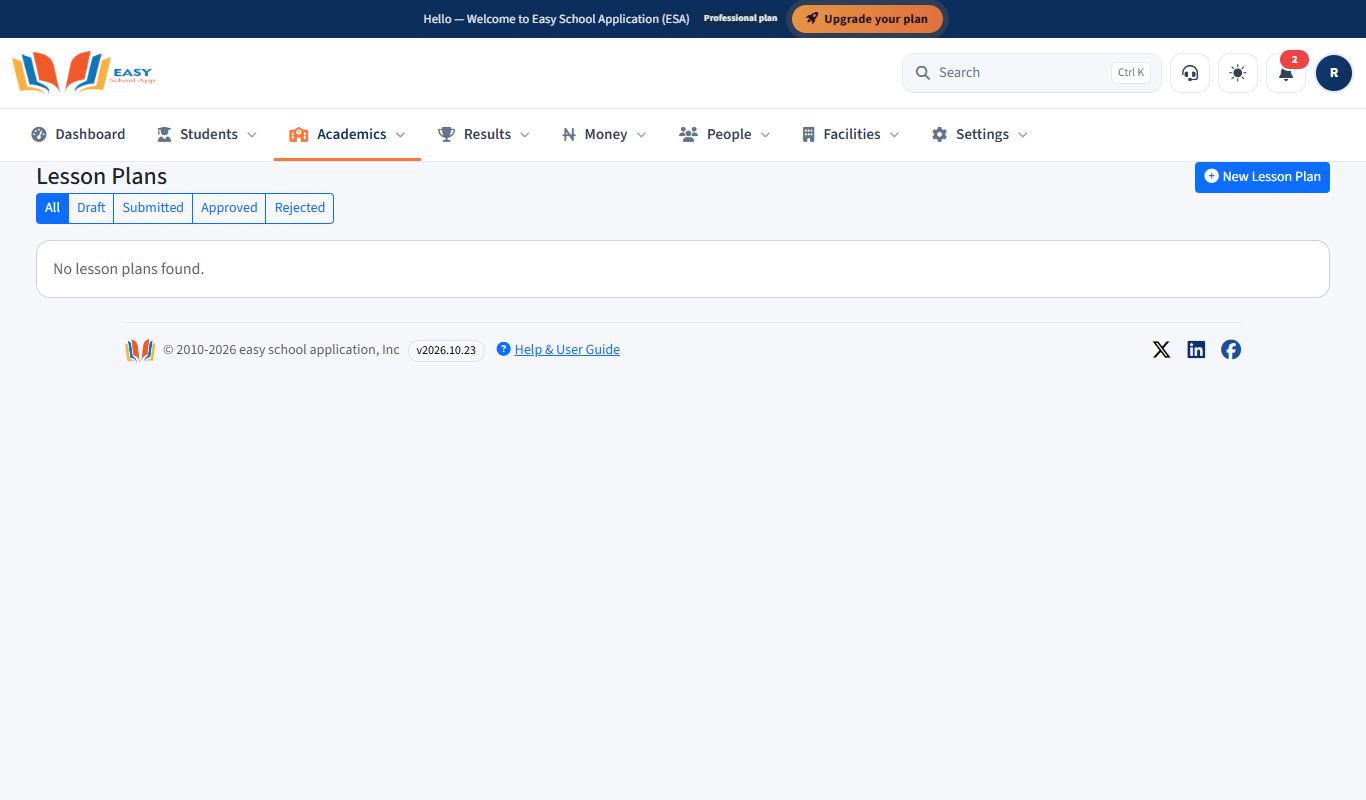
- Open Academics › Lesson plans.
- Click Submitted to see plans waiting for review.
- Open a plan. Read the Learning Objectives, Teaching / Learning Activities, Instructional Materials and Assessment Method.
- If it is good, click Approve.
- If it needs changes, write a Note for the teacher (optional) and click Send Back. The teacher sees it as Rejected with your note.
- The Taught? column shows whether the teacher has marked the lesson as taught.
Write and submit a lesson plan
Purpose: Plan each week's lesson and send it to your Head Mistress or Principal for approval.
Who can use it: Teacher. School Admin, Principal and Head Mistress can also write plans.
Where: Academics › Lesson plans
Steps
- Open Academics › Lesson plans.
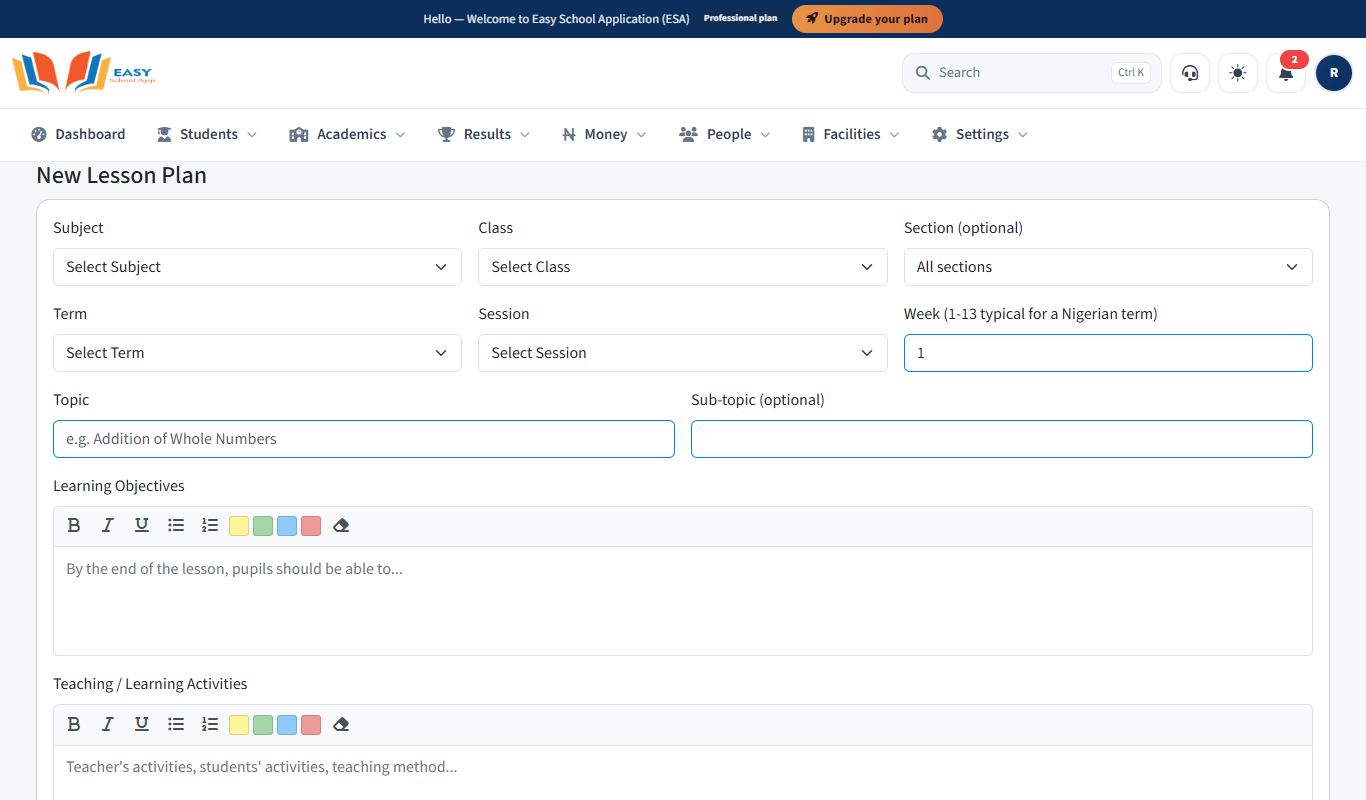
- Click New Lesson Plan.
- Choose the Subject, Class, Section (optional), Term and Session.
- Type the Week (1–13 in a typical Nigerian term), the Topic and the Sub-topic (optional).
- Fill in Learning Objectives, Teaching / Learning Activities, Instructional Materials and Assessment Method.
- Click Save as Draft. You can come back and change it.
- When it is ready, open it and click Submit for review. The status changes to Submitted.
- After you teach the lesson, click Mark as taught and add a Progress Note if you wish.
Common errors and fixes
| Problem | Fix |
|---|---|
| You cannot change a submitted plan | Submitted plans are locked while they are reviewed. Ask the reviewer to Send Back the plan. |
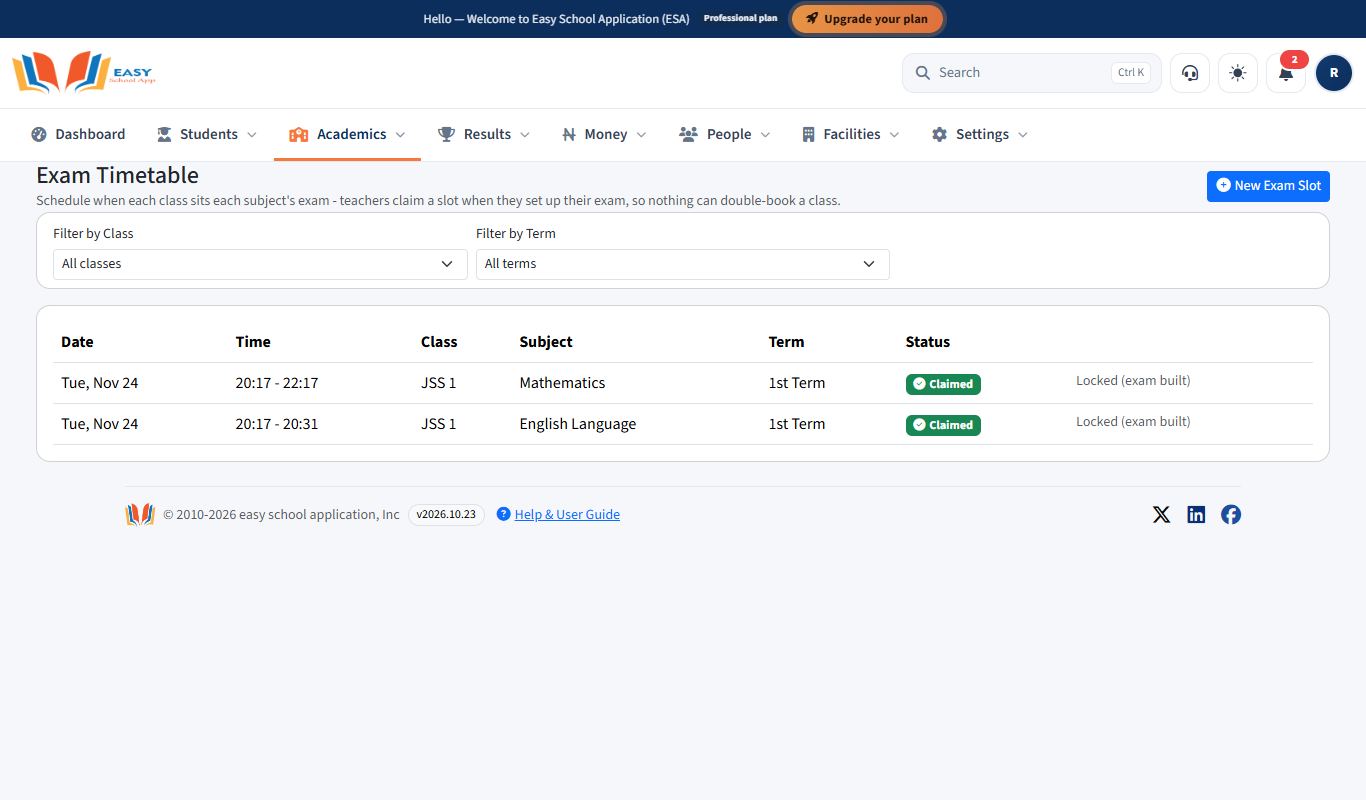
Set up the exam timetable
Purpose: Schedule each exam paper by class, subject, date and time. Parents and students see the timetable, and teachers build CBT exams on these slots.
Who can use it: School Admin, Principal, Head Mistress, Teacher.
Where: Academics › Exam timetable
Steps
- Open Academics › Exam timetable.
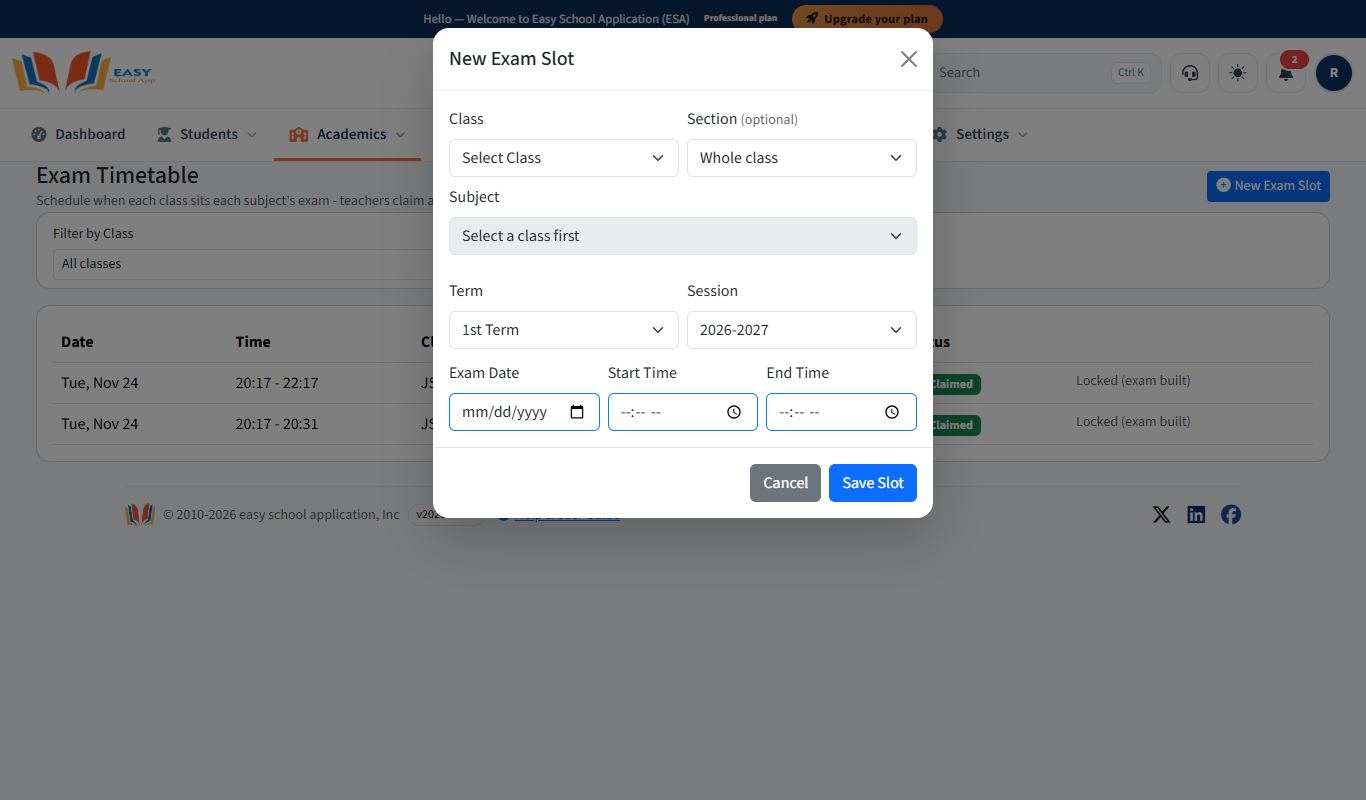
- Click New Exam Slot.
- Choose the Class, Section (optional), Subject, Term and Session.
- Choose the Exam Date, Start Time and End Time.
- Click Save Slot.
- Use Filter by Class and Filter by Term to check the timetable.
Give and grade assignments
Purpose: Give students homework online, collect their answers, and grade them.
Who can use it: Teacher. School Admin, Principal and Head Mistress can also use it.
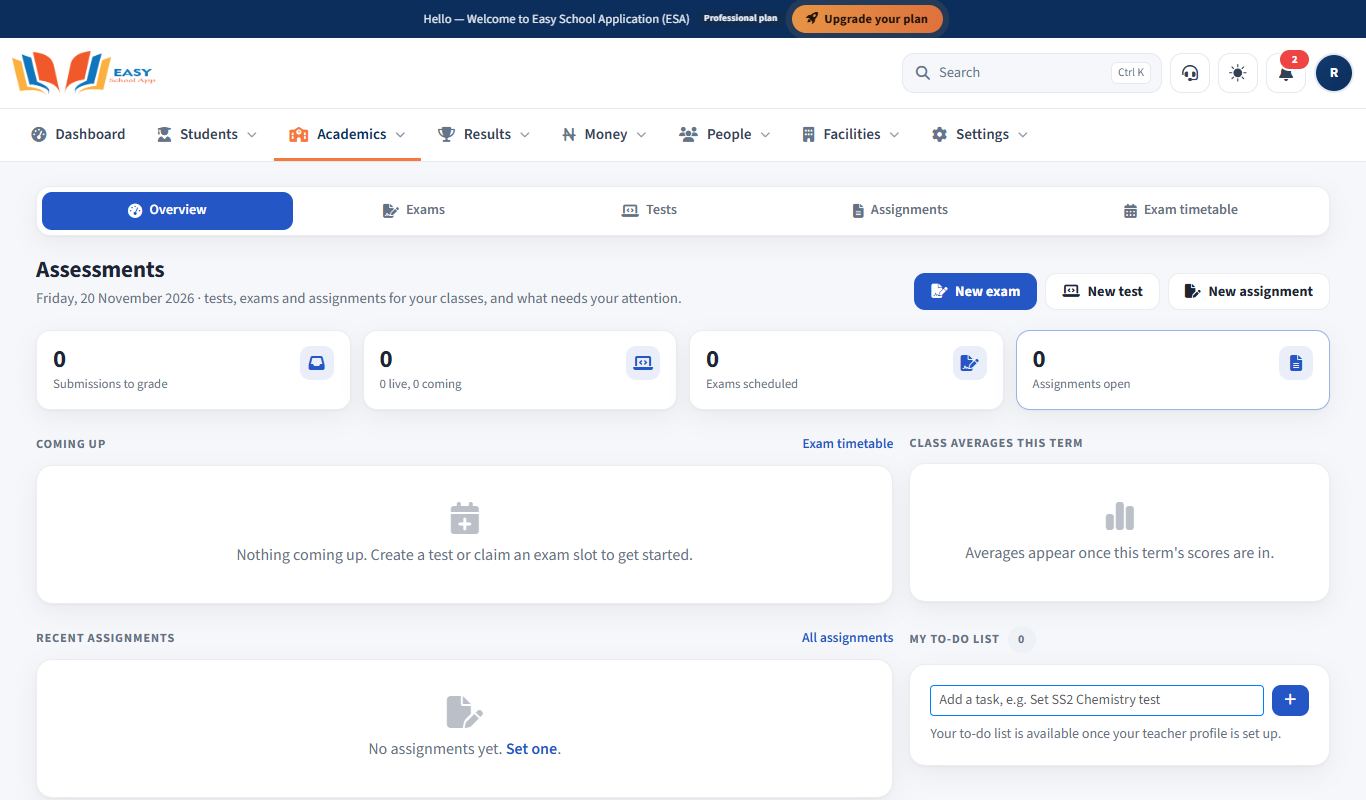
Where: Dashboard Quick Actions › Assignment Management (the Teacher Dashboard page)
Steps – create an assignment
- On the Dashboard, click Assignment Management. The Teacher Dashboard opens.
- Click New Assignment (or Create New Assignment on the My Assignments page).
- Type the Assignment Title.
- Choose the Subject, Class, Term, Session and Section/Group.
- Choose the Start Date and Due Date, and type the Total Marks.
- Add a Description and Instructions. You can upload an Instruction File (PDF) of up to 10 MB.
- Save. Students see it in their portal, and parents see it under Academics › CBT & assignments.
Steps – grade submissions
- On the Teacher Dashboard, click Grade Submissions (or open the assignment from Recent Assignments).
- Under Student Submissions, open each student's Submitted File or Text Answer.
- Type the Marks and Remarks, and save.
- To give the same mark to everyone not yet graded, use Bulk Grading: type the Marks for All Pending Submissions and click Apply to All Pending.
Common errors and fixes
| Problem | Fix |
|---|---|
| "Class is required. Please select a subject." | Choose the Subject first. The class list fills in after that. |
| You cannot create more assignments | You have reached Maximum assignments per term. Check with the admin for a higher limit. |
Set CBT tests and exams
Purpose: Create computer-based tests (CBT) and exams with multiple-choice questions. Students take them in the Student Portal and are marked automatically.
Who can use it: Teacher, School Admin. Principal and Head Mistress can manage exams.
Where: Teacher Dashboard New Test / New Exam / Manage Exam Questions
Steps – create a test
- On the Teacher Dashboard, click New Test (or Create New Test on My Tests).
- Under Test Information, type the Test Title and choose the Subject, Class, Term, Session and Section (Optional).
- Set the Start Time, End Time, Duration (Minutes) and Total Marks.
- Choose Shuffle Questions, Shuffle Options and Show Result Immediately if you want them.
- Add Questions: type the Question Text, Option A to Option E (A and B are required), choose the Correct Answer and the Marks. Add an Explanation (Optional).
- Save.
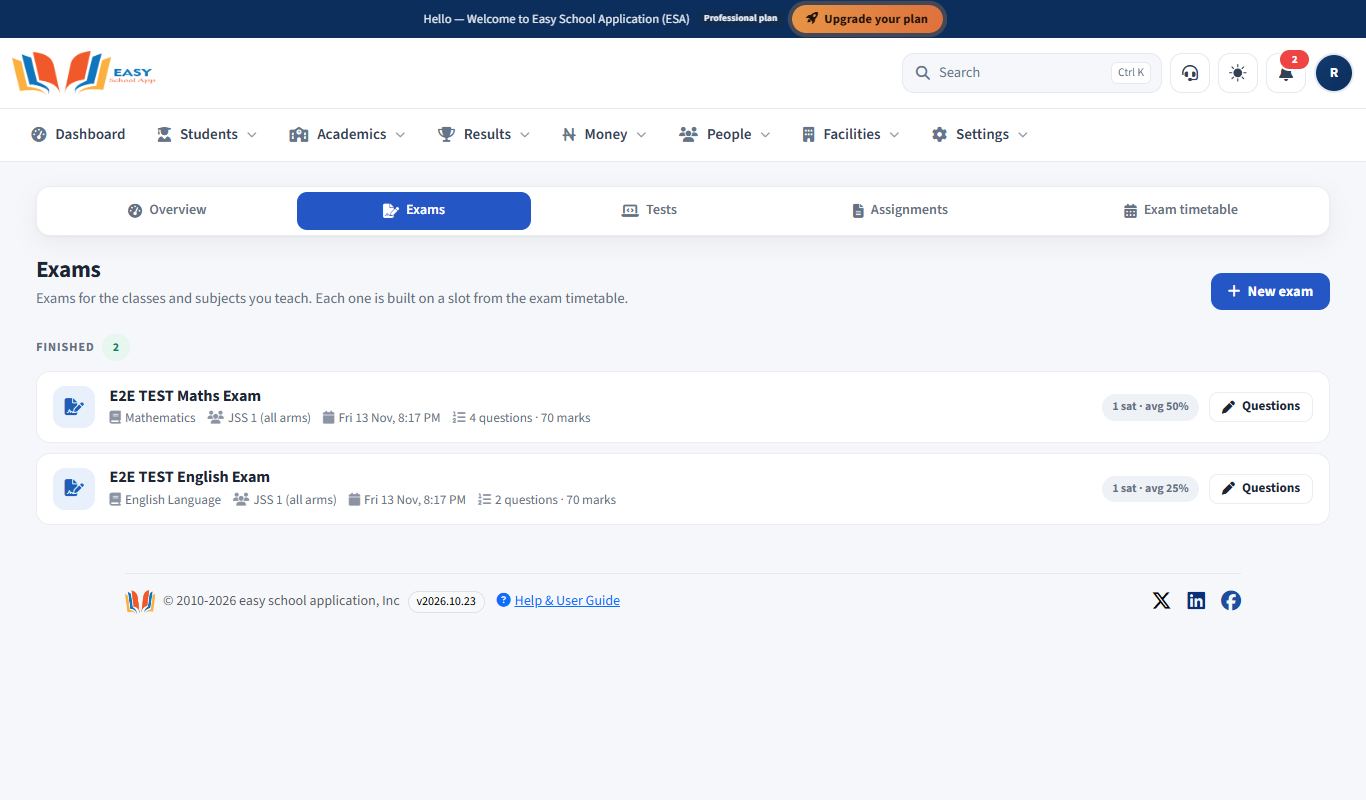
Steps – create an exam
- Make sure the exam has a slot in the Exam Timetable.
- On the Teacher Dashboard, click New Exam (or Exam Management › New Exam).
- Click Manage Questions on the exam.
- Click Add Objective Question for a normal question, or Add Comprehension Passage to add a reading passage with questions under it.
- Click Save Question, or Save & Add Another to continue.
Common errors and fixes
| Problem | Fix |
|---|---|
| Students cannot see the test | Check the Start Time and End Time, and that it is for the right class and section. |
| "No questions yet" | Open Manage Questions and add questions. |
See your students
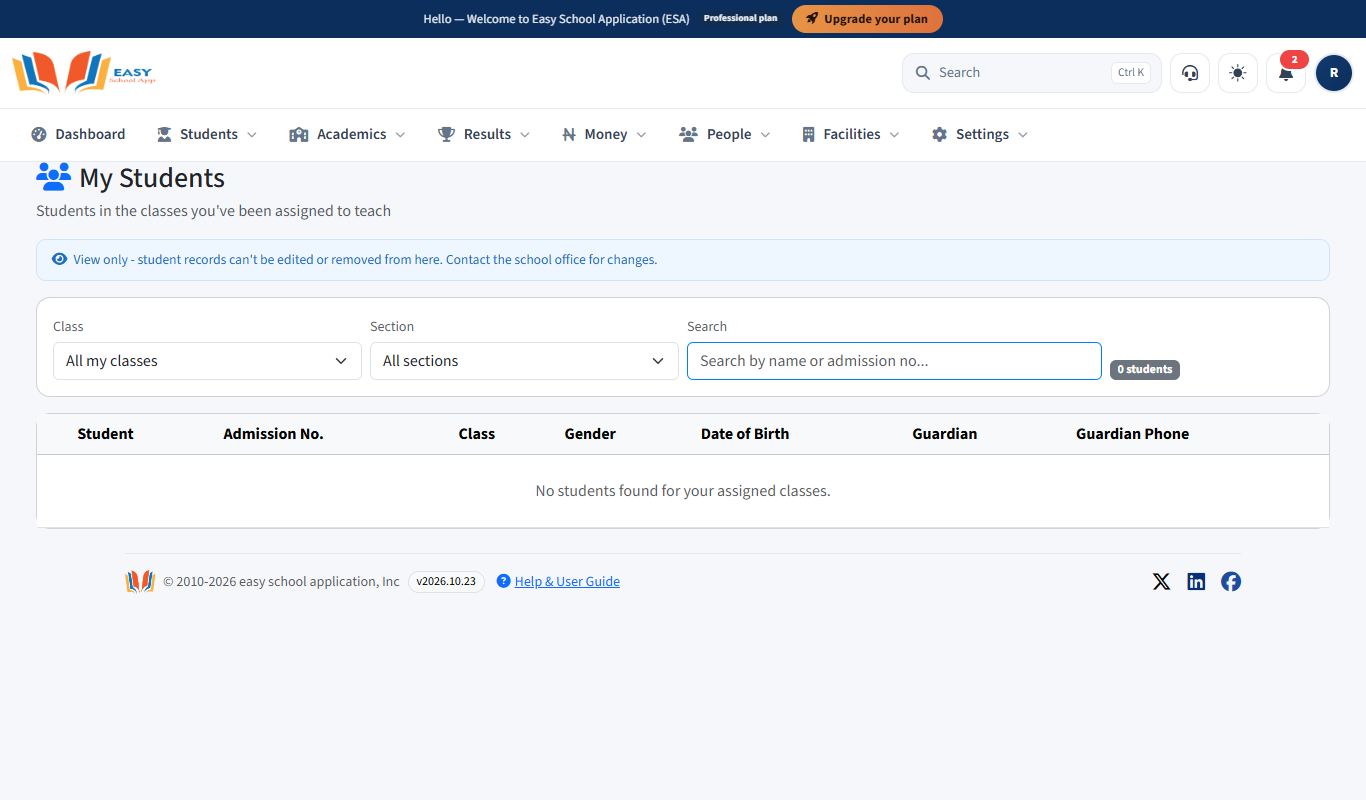
Purpose: See the students in the classes you teach, with their guardians' phone numbers.
Who can use it: Teacher, Head Mistress, Principal, School Admin.
Where: avatar › My Portal › My Students
Steps
- Click your avatar, then My Students.
- Choose the Class and Section, or type in Search.
- The table shows each Student, Admission No., Class, Gender, Date of Birth, Guardian and Guardian Phone.
Moderate teacher–parent chats
Purpose: Keep messages between teachers and parents respectful. You can see every conversation and block one if needed.
Who can use it: School Admin, Principal, Head Mistress.
Where: People › Chat moderation
Steps
- Open People › Chat moderation. Each row shows the Student, Teacher, number of Messages, Last Activity and Status.
- Open a conversation to read it.
- To stop a conversation, click Block. Type a Reason (only you can see it) and confirm.
- To allow it again, click Unblock.