Chief Security Guide
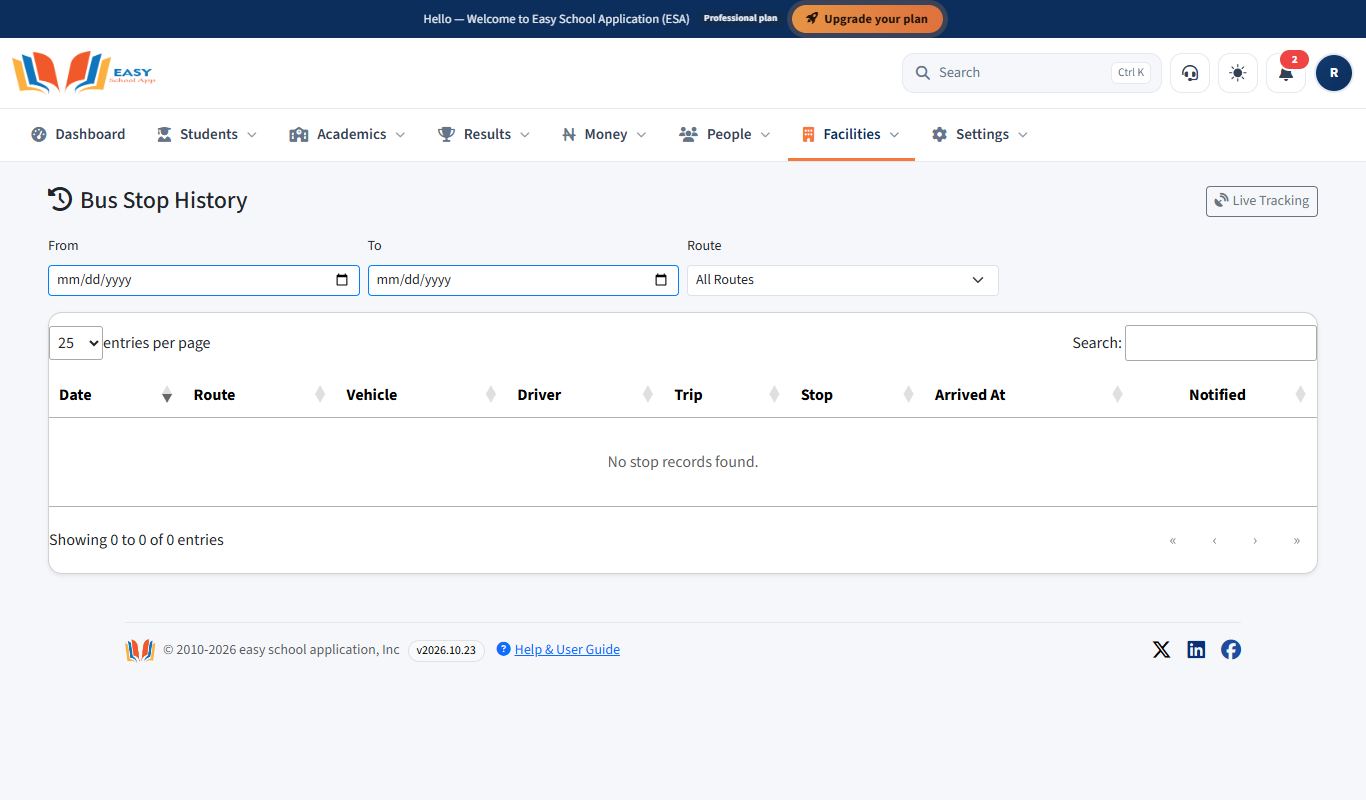
You are the Chief Security officer. You watch the school buses: where they are now, and when they reached each stop.
What you see
- Dashboard
- Facilities › Live tracking and Stop History
Your tasks
Sign in as staff
Purpose: Open the staff portal to do your daily work.
Who can use it: School Admin, Principal, Head Mistress, Teacher, Bursar, Driver, Chief Security.
Steps
- Open your school's EasySchoolApp web address (for example
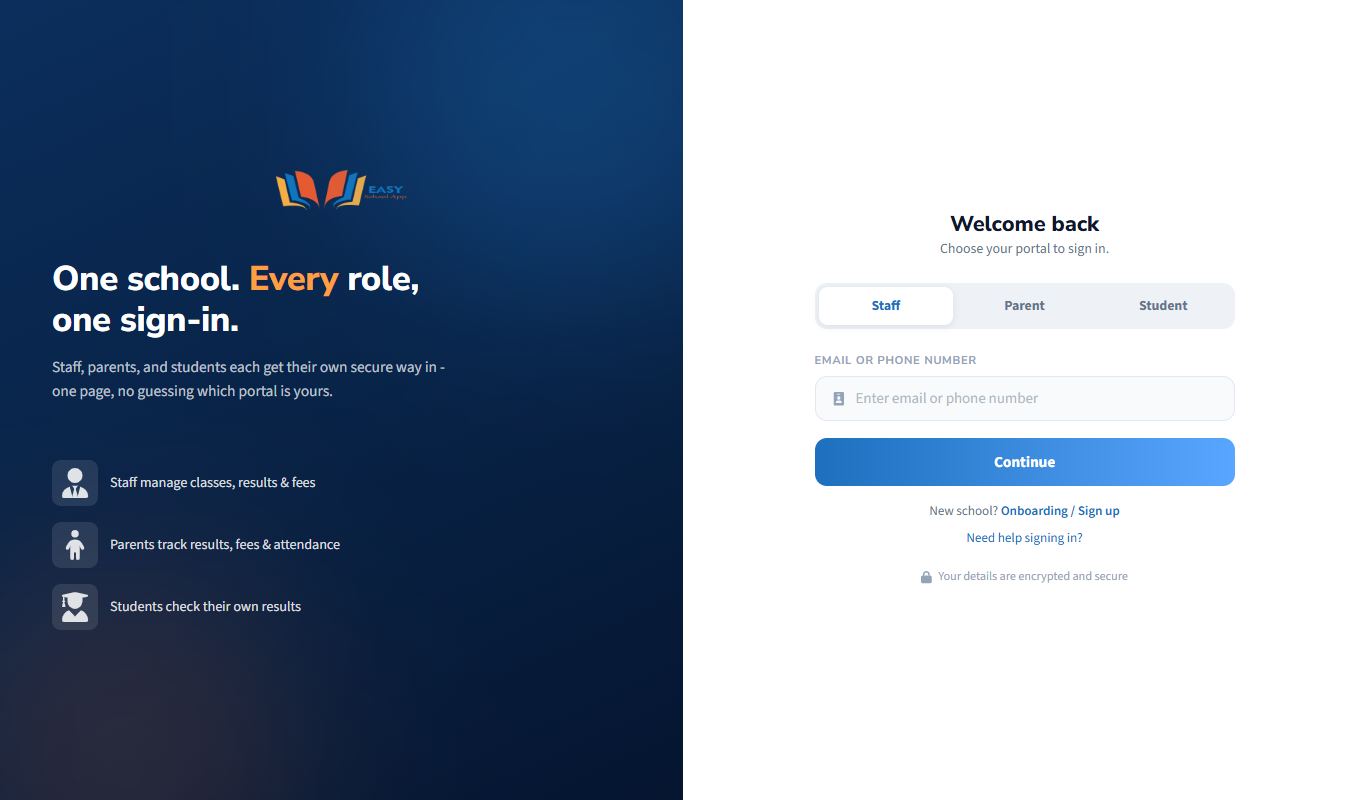
https://app.easyschoolapp.com). - On the Welcome back page, make sure the Staff tab is selected.
- In Email or Phone Number, type the email or phone number the school registered for you.
- Click Continue.
- Type your PIN in Enter PIN.
- Tick Remember me only if this is your own device.
- Click Login. Your Dashboard opens.
First time signing in (no PIN yet)
- After you click Continue, the app says "You don't have a PIN set."
- Click Send OTP. A 6-digit code (OTP) goes to your registered phone (SMS) and email.
- Type the code in Enter OTP and click Verify OTP.
- Choose a new PIN of 4 to 6 digits. Type it in New PIN and again in Confirm PIN.
- Click Set PIN & Login.
Common errors and fixes
| Problem | Fix |
|---|---|
| "Account not found. Please contact your school." | Check for typing mistakes. Try your phone number instead of your email (or the reverse). If it still fails, ask your School Admin to check your record on Staff access & roles. |
| "This account is registered as a parent…" | You are on the wrong tab. Click the Parent tab and sign in there. |
| The OTP does not arrive | Wait 1–2 minutes, check your email spam folder, then click Resend OTP. Make sure the school has your correct phone number and email. "Please wait 30 seconds before requesting again" means you clicked too quickly. |
| "OTP expired. Please request a new one." | Click Resend OTP and use the new code straight away. |
| "Invalid PIN." | Type it again slowly. If you forgot it, use Forgot PIN? (see Reset a forgotten PIN). |
| A page says your school is suspended or billing is locked | Your school's subscription needs attention. Ask the School Admin to contact EasySchoolApp support. |
Watch buses live and check stop history
Purpose: See where each school bus is right now, and check when buses reached each stop.
Who can use it: Chief Security, School Admin, Principal.
Where: Facilities › Live tracking and Facilities › Stop history
Steps – live tracking
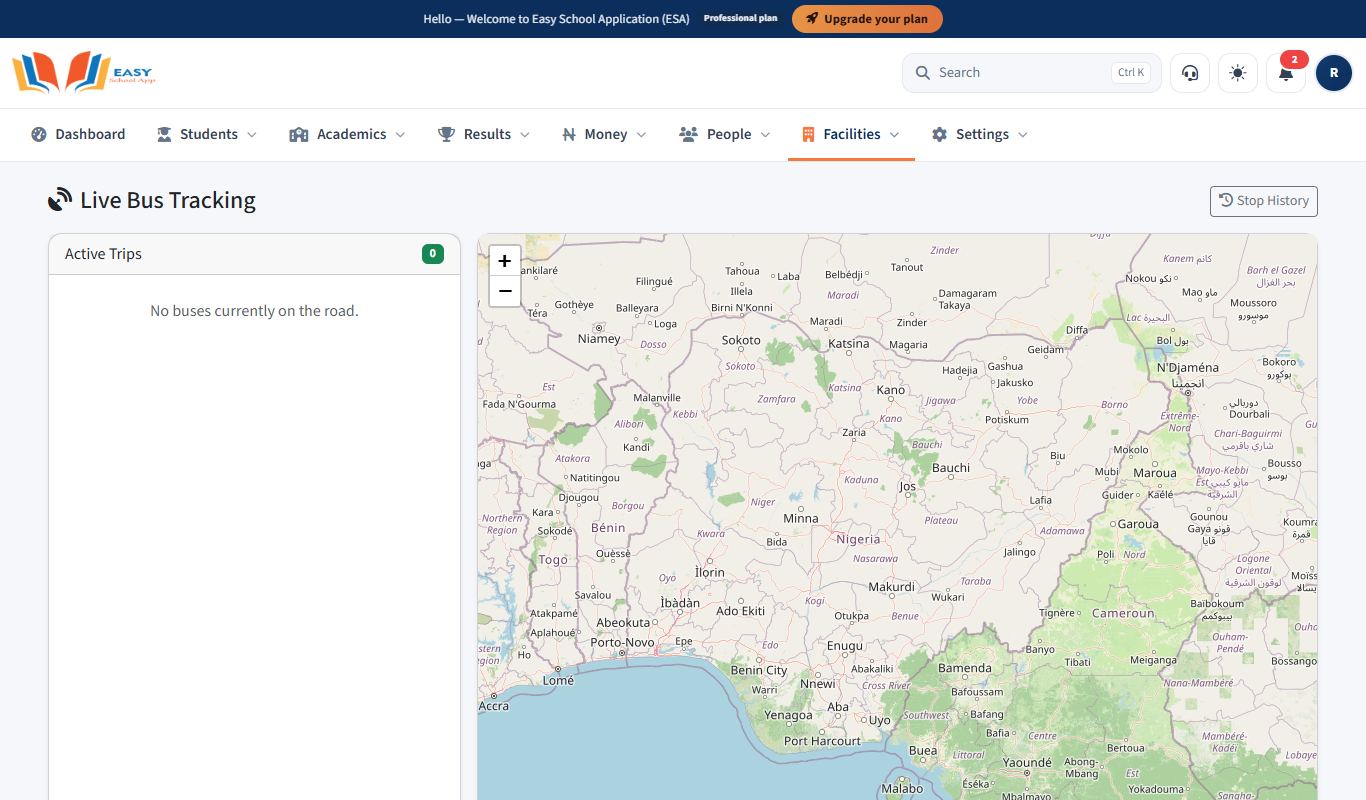
- Open Facilities › Live tracking. The Live Bus Tracking map shows each bus on a trip.
- Click a bus to see its route, driver and last update.
Steps – stop history
- Open Facilities › Stop history (or click Stop History on the live page).
- Choose From, To and Route.
- The table shows each Date, Route, Vehicle, Driver, Trip, Stop, Arrived At time, and whether parents were Notified.